Two bigger things landed this week, and a handful of smaller ones. Both big ones do the same job from two sides. One helps you remember the next step after you finish something. The other lets you correct the app in one sentence when it gets a task wrong.
Suggested moves
There is a new pill in the header, next to the bell. It says Suggested moves, and while something is behind it, how many: 3 suggested moves. Nothing turns red, and nothing is sent to your email.
What is behind the door
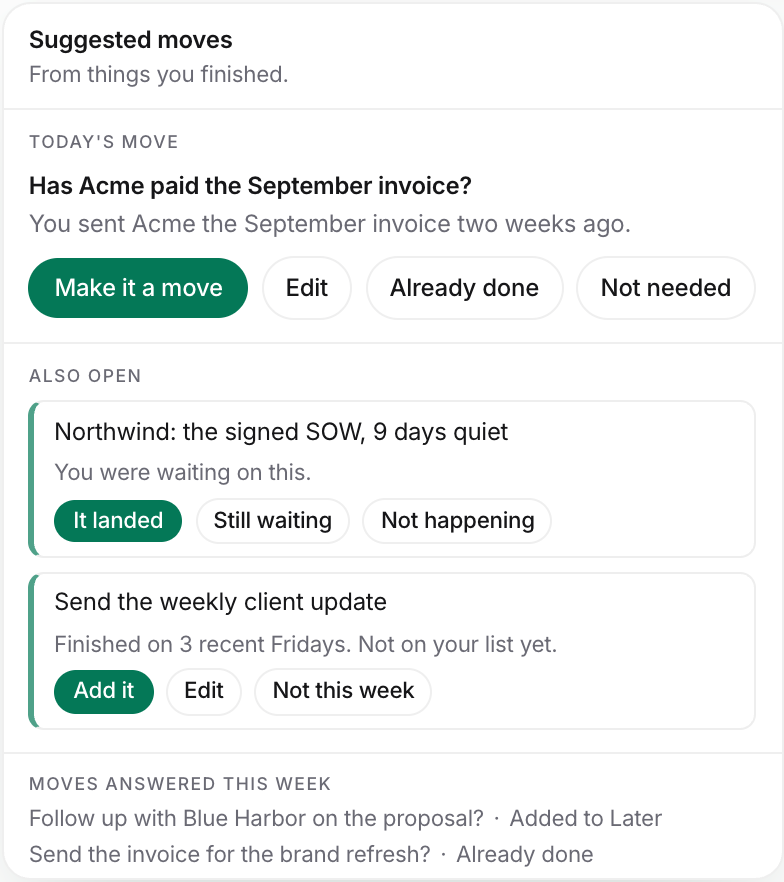
The panel opens with its name and where the moves come from, then three parts.
- Today's move. One new suggestion for the day, with its answers.
- Also open. Up to three other things that are still open, each with its own answers.
- Moves answered this week. What you answered in the last few days, one line each.
Where the suggestions come from
The app reads what you finish and asks what usually comes next. Three kinds of things show up here.
- A next step after something you finished. You sent Acme an invoice two weeks ago. The app asks: has Acme paid?
- Something you are waiting on from another person. The signed contract from Northwind has been quiet for nine days.
- Something you do on a rhythm. You sent a client update on three recent Fridays, and it is not on your list this week.
How to use it
- Press Suggested moves in the header.
- Read the suggestion under Today's move.
- Pick an answer. For a next step: Make it a move, Already done, or Not needed. For something you are waiting on: It landed, Still waiting, or Not happening. For a rhythm: Add it, or Not this week.
- Want it in your own words? Press Edit. The line turns into a text box. Change it, then press Add to Later.
- Anything you add goes to Later, ready to be put in play.
The rules it keeps
- One new suggestion per day. Once you answer it, nothing more shows up that day.
- If you do not answer, it goes away overnight. It does not come back to nag you.
- If the task is already on your list, it will not make a twin.
- If you already did the thing, the app notices and closes the suggestion on its own.
Why it is worth using
The next step after a finished task is the easiest thing to forget. You send the invoice, you feel done, and three weeks later you notice nobody paid. Now the app holds that thread for you, so your head can stay empty. And it never takes over your day. It is a door you open when you want, not a card that jumps in front of your work.
Something is off? Tell us
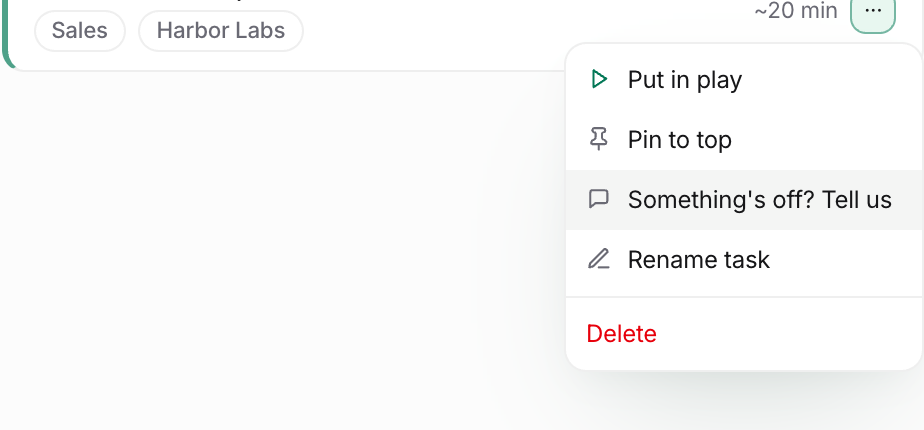
Every task now has one way to correct it. Open the menu with the three dots on any Today card or Later row. Pick Something's off? Tell us. This replaces the old Change items with their lists of options.
How to use it
- Open the three dot menu on a task.
- Pick Something's off? Tell us.
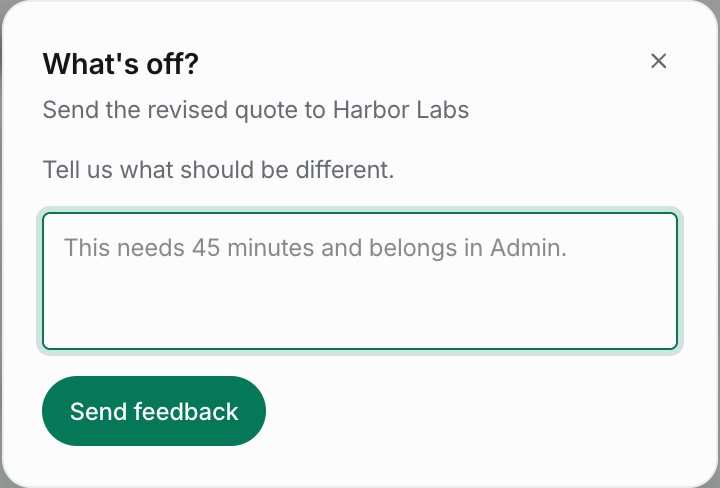
- Type what should be different, in plain words. For example: "This needs 45 minutes and belongs in Admin."
- Press Send feedback, or just press Enter.
What comes back
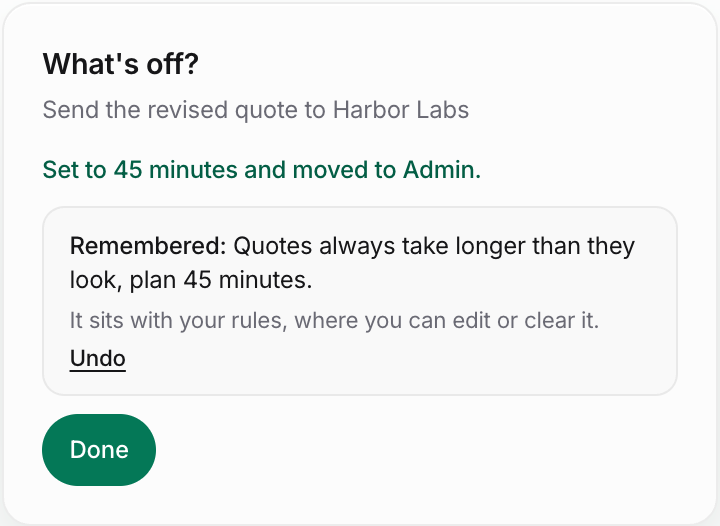
You get one line that says exactly what changed on this task. If your words were not enough, you get one question back instead, and you answer it in the same box.
If what you wrote sounds like a general rule, for example "quotes always take longer than they look", the app remembers it. You see a Remembered line with an Undo. The rule sits with your other rules in Settings, where you can edit it or clear it any time.
The guards on it
- Nothing changes that you did not say. A new time only lands if you mentioned a number or a word like hour or minutes.
- Nothing is reported as changed if it was already true.
- If you already have a rule that says the opposite, the app asks first. You choose Replace it or Keep the old one. It never swaps a rule you wrote on its own.
- Undo takes the rule back out, and brings back the old one if it replaced something.
Why it is worth using
You should not have to manage a task's facts through menus and dropdowns. You tell us what is wrong, once, in a sentence. The task is fixed, and if there was a lesson in it, the app keeps it. Over time your picks get sized and sorted the way you actually work.
Also new this week
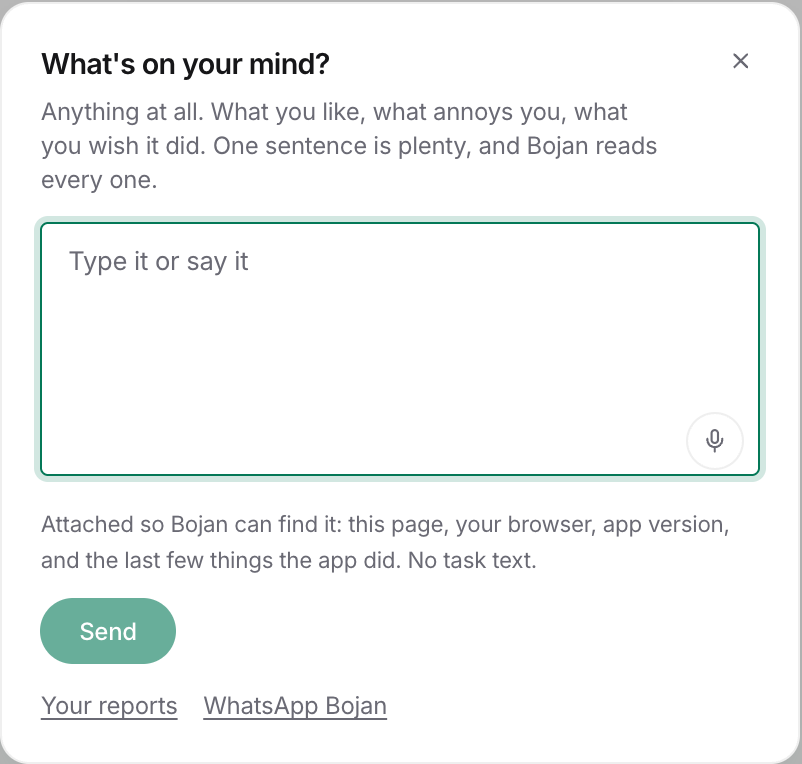
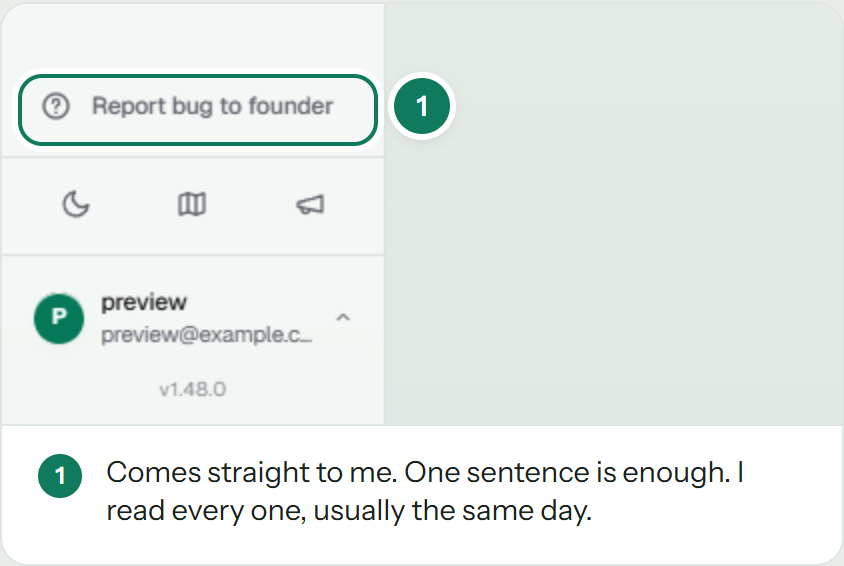
Send feedback. There is a speech bubble at the foot of the sidebar. Press it to tell us anything at all. What you like, what annoys you, what you wish the app did. One sentence is plenty. Bojan reads every one, and the reply lands under Your reports. The Report bug button is still where it was, for the moment something breaks.
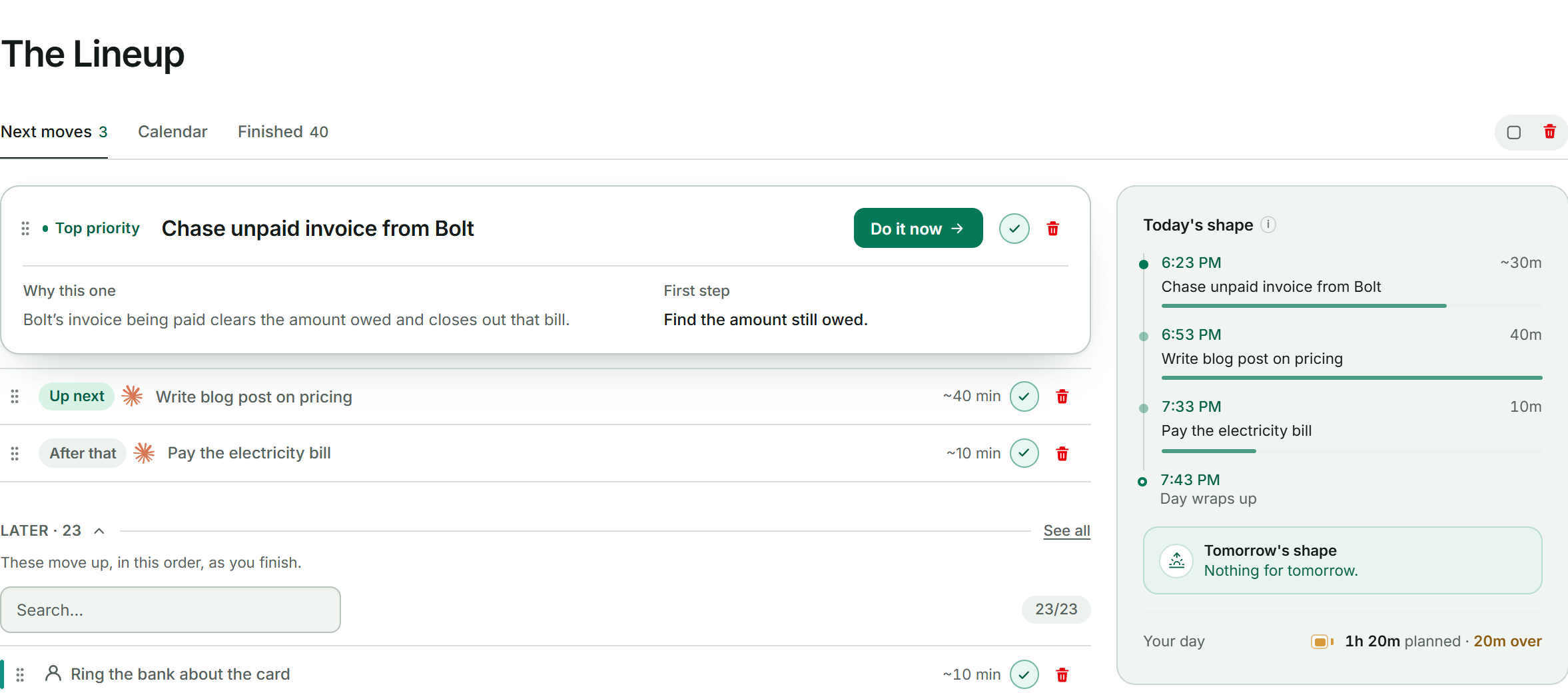
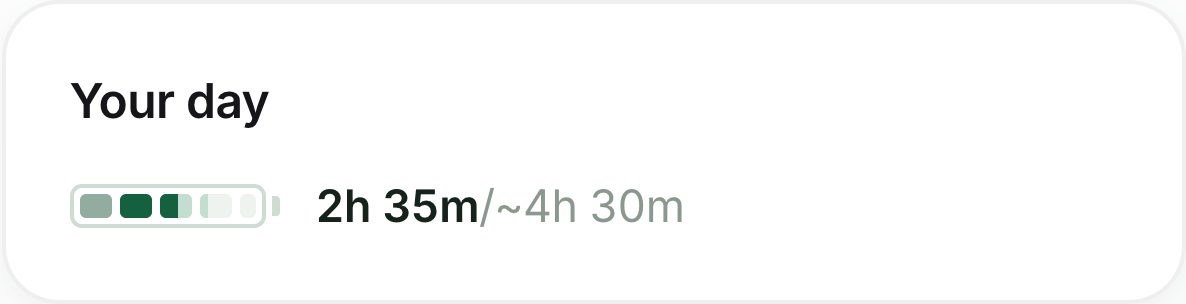
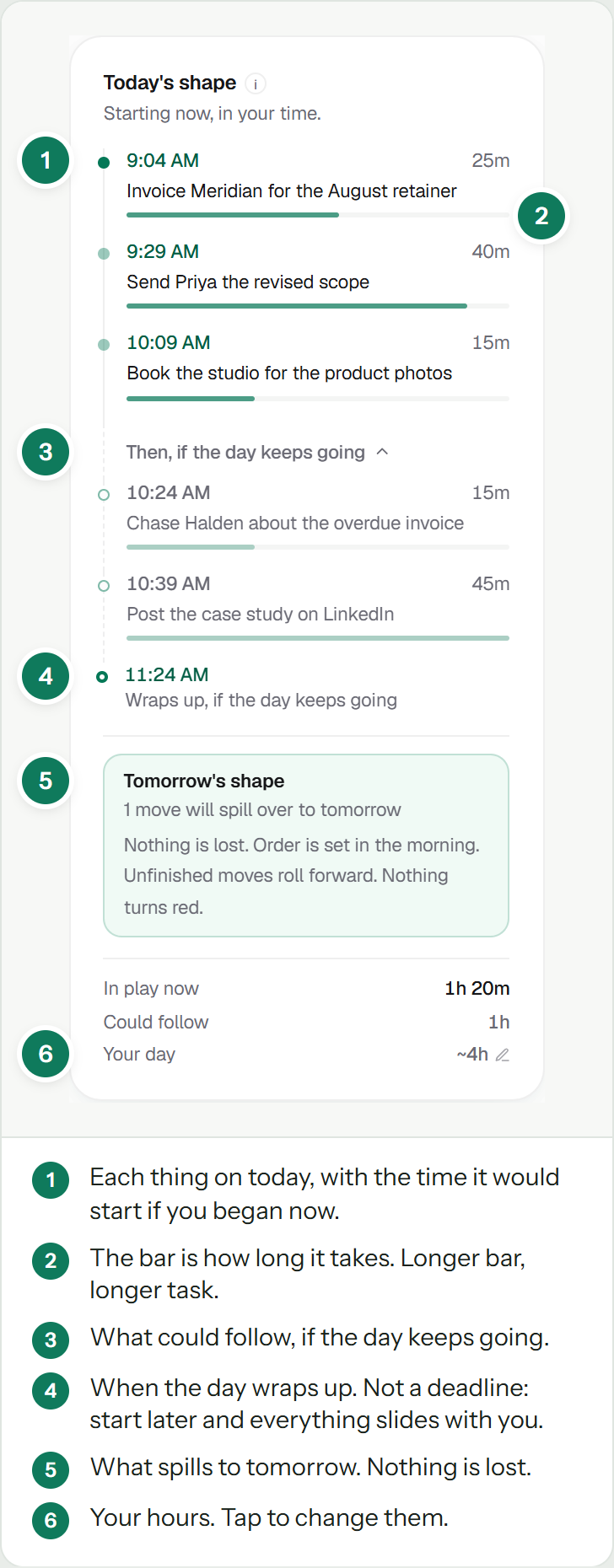
Your day, drawn as hours. On the Lineup, the day's shape now shows a row of small cells. Each cell is one hour of your working day. The filled part is what is already spoken for. A number next to it says how much is in play out of your hours. If you have more on the day than it has hours, it turns amber and says how much over. It never turns red. Hover over it for the full breakdown.
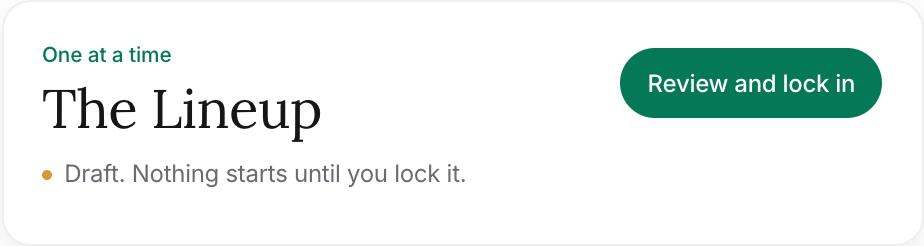
Review and lock in. When your plan is still a draft, one button sits at the top of the Lineup. Nothing starts until you lock it. After you plan again or add something you forgot, the button says Lock in the new plan.
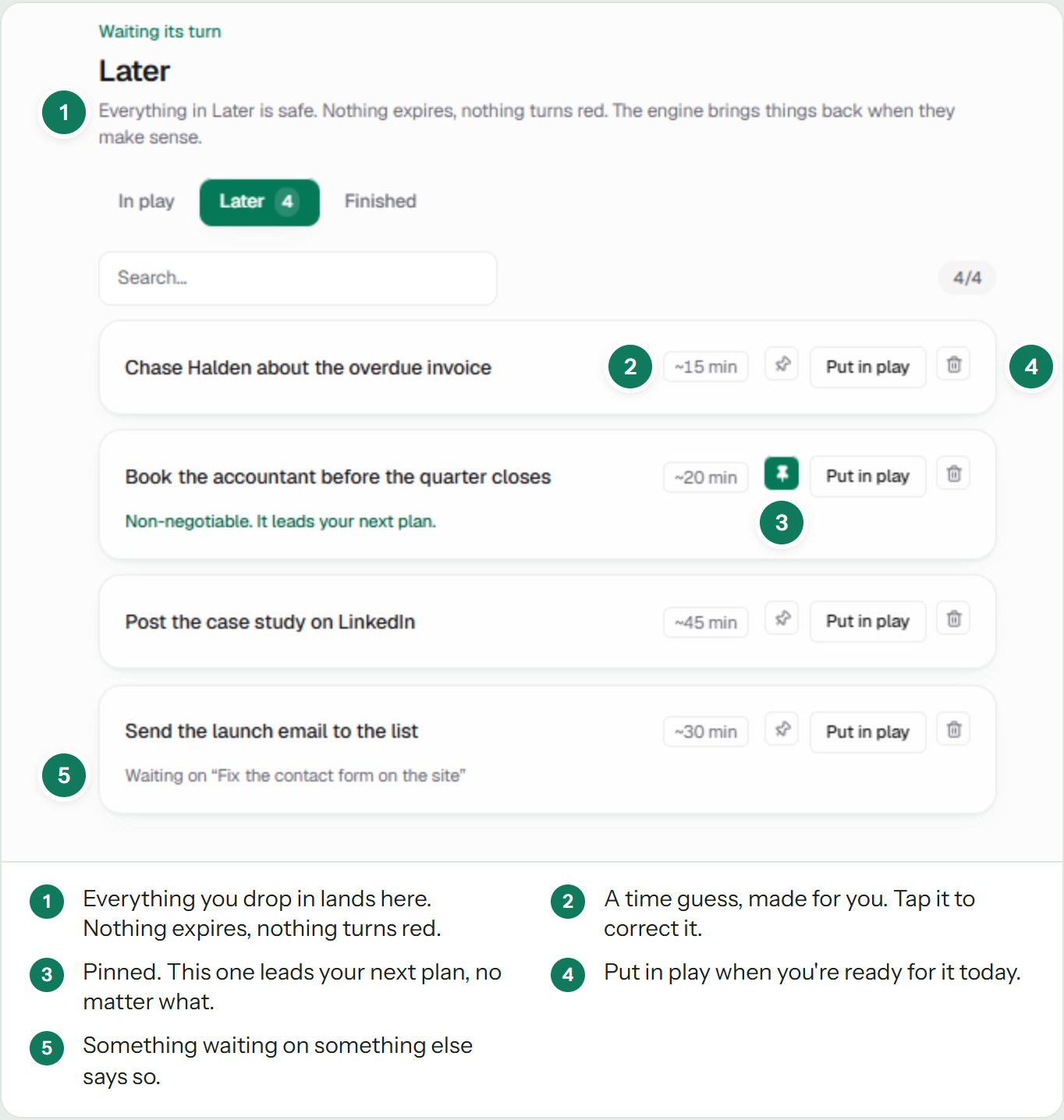
Later rows, tidied. Each Later row is one line. The time estimate sits at the right edge, the same way the Today cards show it. Put in play is the first item in the menu.
A Type and an Area on every task. Each task now carries a Type, like Sales or Admin, and an Area when one is clear, like a client name. The app guesses both. Tap a chip to change it, and Undo is there for six seconds. On the Later page you can filter by Type or Area, or group by them. Rename, merge or add your own under Settings, Categories. A choice you make by hand is never overwritten by the app.
Start here, for new accounts. If you joined this week, there is an onboarding checklist at the top of the sidebar. Five steps for your first two weeks, one at a time. Each step opens when the one before it is done. You can hide it from its footer any time.
How we know
Every change above was tested against the real engine before it shipped, with the exact cases where things went wrong before. If a suggestion does not fit, answer Not needed. If a correction lands wrong, press Undo and tell us through Send feedback. Both become test cases.